

Tree Builder
The tree builder is where you define strategy logic by adding and configuring nodes.
You can also start from AI Generation - describe a strategy in the app or through MCP, then refine the tree here.
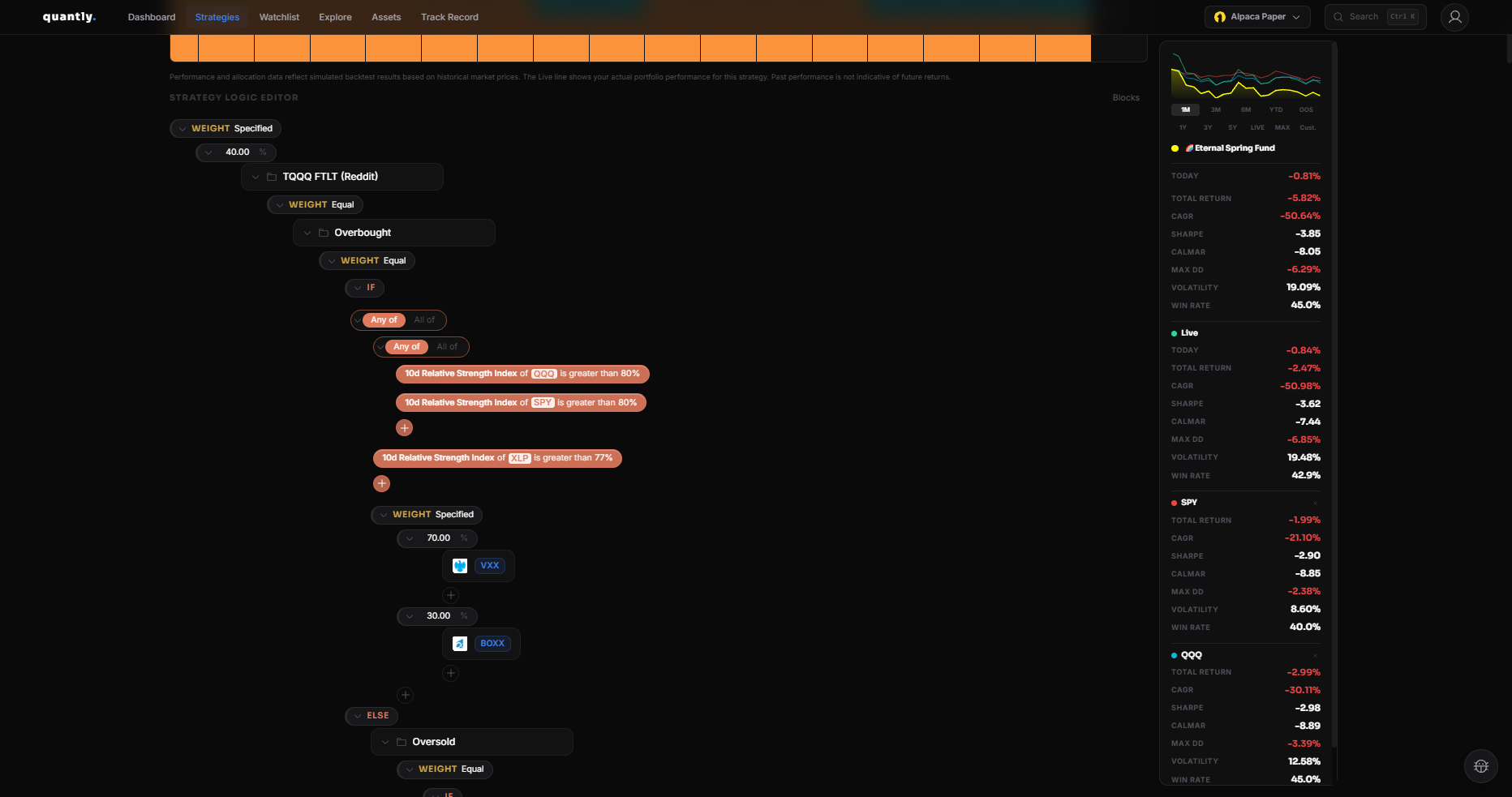
Opening the builder
Section titled “Opening the builder”Go to Strategies and open a strategy, or click New Strategy.
The tree view is the main editor. Use the + menu on any node to add child nodes.
Adding nodes
Section titled “Adding nodes”Click + on a node to open the add menu. Available types:
- Asset - hold a specific ticker
- If / Else - branch based on a condition
- Filter - select assets from a pool by sorting or ranking
- Scale - adjust allocation based on a condition
- Weight - set relative weights between siblings
- Group - organize related nodes
- Reference - reuse another branch of the tree
See Node Types for when to use each.
Configuring conditions
Section titled “Configuring conditions”If / Else, Filter, and Scale nodes use conditions. A condition compares indicators or values:
- Compare price to an indicator (for example, RSI below 30)
- Compare indicators to each other (for example, SMA(20) above SMA(50))
- Use logical groups (AND / OR) for complex rules
Indicators like SMA, EMA, and RSI support a period parameter. See the Indicators reference.
Dry run preview
Section titled “Dry run preview”Before deploying, use Dry Run Preview to see what allocation the strategy would produce today. This helps verify logic without waiting for the next execution.
- Start simple - a single Asset node is a valid strategy
- Use If / Else for regime switching (risk-on vs risk-off)
- Use Filter when you want to pick from many tickers (for example, top 3 by momentum)
- Check validation messages before backtesting
Next steps
Section titled “Next steps”- Node Types - detailed guide per node
- Backtesting - test your tree on history
- Indicators - full indicator list