

Your First Strategy
This walkthrough creates a simple strategy, backtests it, and starts paper trading.
After you finish account setup, Quantly starts a product tour that walks through Dashboard, Strategies, creating a SPY hold in the editor, Watchlist, Explore, Track Record, and Settings. The first-run tour cannot be skipped. Replay it later from Settings → Profile, or from the command palette (Cmd/Ctrl+K). Progress is saved to your account so other devices stay in sync.
Create a strategy
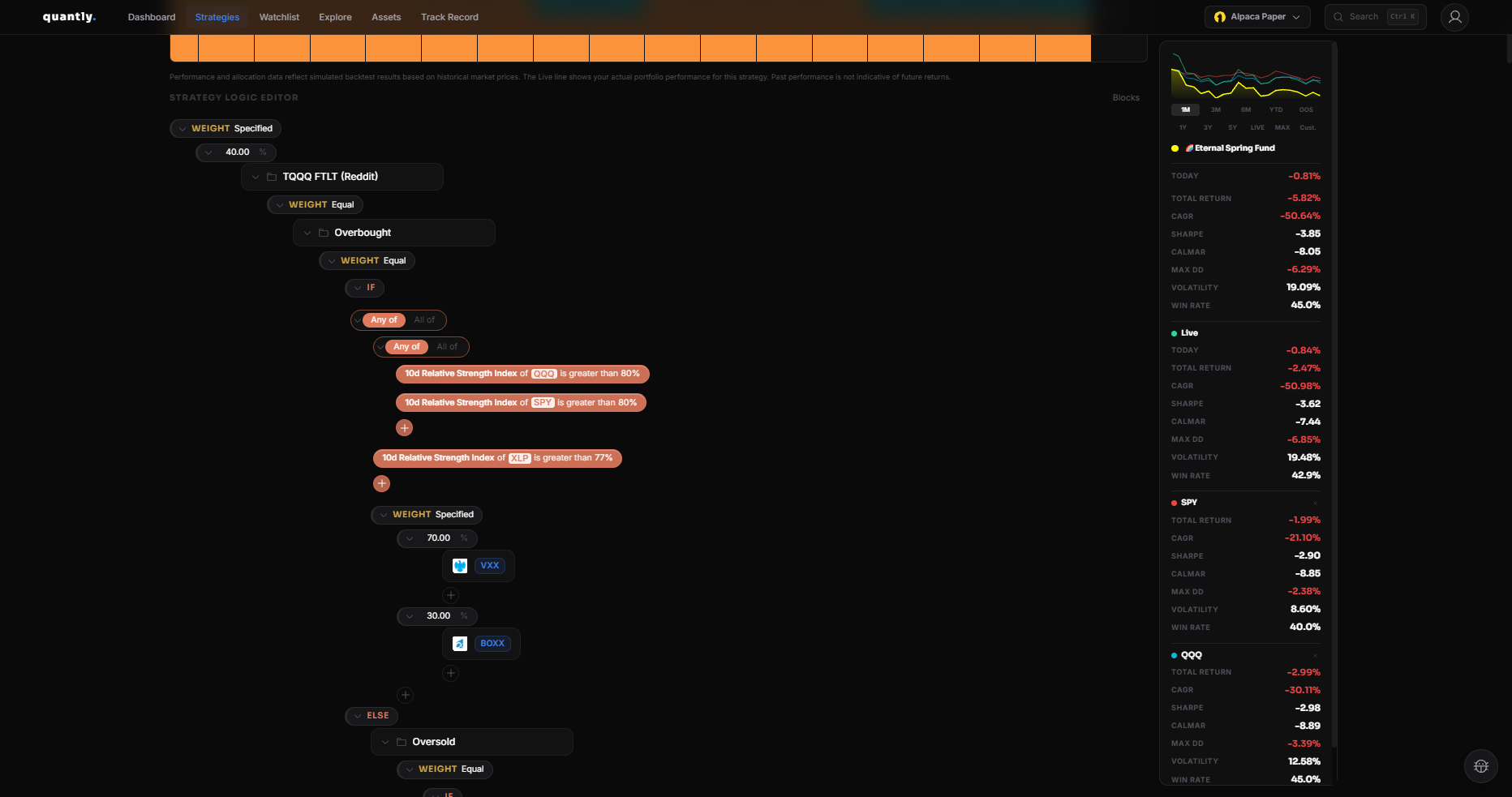
Section titled “Create a strategy”You can build manually in the tree editor or use Generate with AI to describe what you want. See AI Generation for in-app AI and MCP options.
Manual build (this walkthrough)
Section titled “Manual build (this walkthrough)”Go to Strategies and click New Strategy.
Name your strategy (for example, “SPY Hold”).
In the tree builder, add an Asset node and set the ticker to SPY. The in-app tour walks this with you on a new strategy, then points at the chart, Risk Analysis (Monte Carlo), and the Tear Sheet once the backtest has data.
For a simple always-hold strategy, a single Asset node is enough. The in-app tour also points at the add-block menu so you can explore Group, If / Else, Filter, Scale, and Reference later. See Node Types and Tree Builder.
Backtest
Section titled “Backtest”Open the Performance tab in the strategy editor.
Select a date range (for example, 3Y or MAX).
Review the equity curve, CAGR, Sharpe ratio, and max drawdown.
Learn more in Backtesting.
Invest and deploy
Section titled “Invest and deploy”Click Add Investment (or Invest) on the strategy.
Enter the amount of capital to allocate to this strategy.
Confirm deployment. Quantly will execute the strategy at the next trading time (if that time has already passed today, it will wait until the next trading period).
On Quantly Paper, trades run in your connected paper account. On Quantly Pro, you can choose paper or live execution.
Review on Dashboard
Section titled “Review on Dashboard”Open the Dashboard to see:
- Portfolio equity and today’s change
- Strategy cards with status and performance
- Holdings and trade log tabs
Next steps
Section titled “Next steps”- Deep dive into Node Types
- Understand Risk Analysis
- Explore Performance Metrics